


Follow these simple and easy steps to backup your Favorites in Internet Explorer:
Tuesday, November 17, 2009

Saturday, November 7, 2009
How to redirect using meta refresh tag
Meta refresh redirect is a way to redirect pages, it sends your visitors from a page to another page using a meta http-equiv tag that you inserted into the header of an html document.
Here’s how to use it:
www.yourdomainname.com/nameofyourfolder and it will automatically redirect the page.
The main disadvantage of this method is that you need a separate file for every redirect.
Note that this method will not cloak your affiliate url in the address box. This basically just do a simple redirection.
By using meta refresh method to redirect, the tag is actually telling the browser to automatically request another page of a site after a certain number of seconds. The content=”” command tells your browser how many second to wait before executing the refresh and the redirection. Becareful of using this method because many SEO experts said that search engines may not like this and they may lower your page rank or even ban you because you are sending visitors to a page other than the one they requested.
Here’s how to use it:
- First, create a folder and name it whatever you like. The name of the folder will be used as part of the url link that you are going to use to redirect. So if your folder’s name is “mysite” then the redirect link will be “www.yoururl.com/mysite”
- Create an html file (you can use a notepad), and place the following script and save it as index.html. Replace “your URL” with the URL which you want to redirect and store the file in the folder which you just created.


- Upload the folder to your hosting account and you are done.
www.yourdomainname.com/nameofyourfolder and it will automatically redirect the page.
The main disadvantage of this method is that you need a separate file for every redirect.
Note that this method will not cloak your affiliate url in the address box. This basically just do a simple redirection.
By using meta refresh method to redirect, the tag is actually telling the browser to automatically request another page of a site after a certain number of seconds. The content=”” command tells your browser how many second to wait before executing the refresh and the redirection. Becareful of using this method because many SEO experts said that search engines may not like this and they may lower your page rank or even ban you because you are sending visitors to a page other than the one they requested.
How to do a PHP redirect
PHP redirect is a way to redirect pages, it sends your visitors from a page to another page using a PHP script. This kind of redirect is said to be more search engine friendly than using Meta Refresh redirect. There’s several reason webmasters need to redirect pages includes making their long url shorter or because the changes they made to their site’s directories. You can easily redirect your readers to a different page using a small snippet of PHP code (or also known as php redirect). Using this method, your visitors can be transfered to the new page witthout having to click a link to continue. Fortunately redirecting pages using PHP is an easy task.
Here’s how to do it:

Here’s how to do it:
- Create and name your new folder. Your folder’s name will be used as part of the url link which you are going to use for redirecting. Let’s say the name of your folder is “mypage” then the redirect link will be www.yoururl.com/mypage
- Create a php file (you can use a notepad), copy paste the following php code below into the notepad and remember to save it as index.php. Replace “your URL” with the URL where you want the redirection to take place and store the file in the folder that you just created.

- Upload the folder to your hosting account and it’s done. Test the new file in all major browsers, like this: www.domainname.com/nameofyourfolder. The redirect should be instantaneous.
How to use PHP include
If you have a website with plenty of pages to update, to edit each page and change it one by one will be very tedious and boring things to do. The more page you have, the more possibility that you make mistakes. Using PHP include is certainly something you need and it is very helpful because not only it enables you to uniform certain parts of your content pages, but also update them all by only editing a single file.
Before you start using PHP includes, make sure that your web host or server can handle PHP files. Secondly, when you are using PHP includes on any pages, make sure the extension of those page is “.php” instead of “.html”. By using this PHP include script, once uploaded to the web, all of your files will merge appropriately to form one page.
Here’s how the PHP code looks like:
The code can be pasted into sidebars, header, tables and anywhere you like.
Change the "filename" to anything you like, to make things easier to remember, it is suggested that you give it a name which correlates to the content you will be putting in it. For example if it is “header.php” then the file should be made especially for header. If the file contains advertisements for your site, then you can name it “ads.php”.
Next, you will want to create a page where the content of this page will appear in the page that contains the PHP include code. Make sure you save it with the exact same name you assigned to the code above, otherwise the script wont work.
Sometimes the path names doesn’t work and therefore you need to use alternative way, that is using the URL in the include instead, like this:
Using this method is less efficient in terms of server resources because (just like a browser) it has to create an HTTP session, get the file and then pull it in (even both of them located at the same server). This method of course is slower than using a pathname.
You can include files with .html, .php, .txt, .asp and other extensions.
Before you start using PHP includes, make sure that your web host or server can handle PHP files. Secondly, when you are using PHP includes on any pages, make sure the extension of those page is “.php” instead of “.html”. By using this PHP include script, once uploaded to the web, all of your files will merge appropriately to form one page.
Here’s how the PHP code looks like:
<?php include("filename.php"); ?>
The code can be pasted into sidebars, header, tables and anywhere you like.
Change the "filename" to anything you like, to make things easier to remember, it is suggested that you give it a name which correlates to the content you will be putting in it. For example if it is “header.php” then the file should be made especially for header. If the file contains advertisements for your site, then you can name it “ads.php”.
Next, you will want to create a page where the content of this page will appear in the page that contains the PHP include code. Make sure you save it with the exact same name you assigned to the code above, otherwise the script wont work.
Sometimes the path names doesn’t work and therefore you need to use alternative way, that is using the URL in the include instead, like this:
<?php include("http://www.domainname.com/directory/filename.php"); ?>
Using this method is less efficient in terms of server resources because (just like a browser) it has to create an HTTP session, get the file and then pull it in (even both of them located at the same server). This method of course is slower than using a pathname.
You can include files with .html, .php, .txt, .asp and other extensions.
Thursday, November 5, 2009
What is Reseller Hosting
Many web hosting firms offer reseller hosting service. With this type of hosting, the account owners of reseller service rent out portion of their disk space and bandwidth they receive to other end users. In this case, the account owners are just like a hosting service provider to those end users.
Difference Between Shared Hosting, VPS and Dedicated Hosting
There are basically 3 types of hosting available – shared hosting, VPS hosting and dedicated hosting. Of course there are differences between these three and knowing which type of service is best for your website is very important.
Wednesday, November 4, 2009
Set up CO.CC domain on 000webhost account
What is CO.CC? If you've never heard of CO.CC, the following sentence I took directly from the source may explain it to you briefly.
CO.CC will provide us with a domain name free of charge (yourdomainname.co.cc). Since the domain name is free and it’s easy to make, this can be absolutely useful for those who want to make a website and are not ready yet to pay for a domain name. Installing the domain on your web host takes about 5 minutes. I found many people use the CO.CC domain name to replace their Blogspot URL for their custom domain (for example, you will see myblog.co.cc instead of myblog.blogspot.com), you can do it to your Wordpress too or any other blog that support the feature.
If you are interested to get the free domain, start registering, which is easy and fast (each account can only have 2 free domain ending with co.cc). Here are the steps:


Important: Always backup your files after you do an update when you host your site on 000webhost as many users account are closed without any warning or notifications. I had an account in 000webhost and it has suddenly been closed "due to Inactivity" without informing me beforehand. The 000webhost affiliate program is also reported by many people as a scam, you can find this on Google.
“CO.CC is the world's best free domain name registrar and the leading provider of Internet services including - Free dns service, online marketing, url forwarding, e-mail and more.”
CO.CC will provide us with a domain name free of charge (yourdomainname.co.cc). Since the domain name is free and it’s easy to make, this can be absolutely useful for those who want to make a website and are not ready yet to pay for a domain name. Installing the domain on your web host takes about 5 minutes. I found many people use the CO.CC domain name to replace their Blogspot URL for their custom domain (for example, you will see myblog.co.cc instead of myblog.blogspot.com), you can do it to your Wordpress too or any other blog that support the feature.
If you are interested to get the free domain, start registering, which is easy and fast (each account can only have 2 free domain ending with co.cc). Here are the steps:
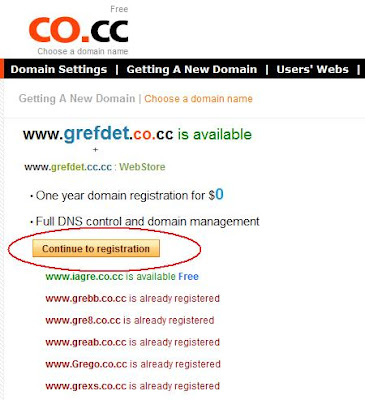
- Click Here to go to CO.CC (will open in a new tab), fill in your domain name of choice in the box provided and press “check”. A page will come up telling you whether that domain name is available. If not, select a new domain name to try. Sometimes it will charge you $3 or $7 for a good domain name you choose, dont be dissapointed, you can ‘slightly’ change your domain name or add extra letter, or number, or insert a hyphen somewhere in it until it’s totally free.
- If your domain name is available, then you can start to press “Continue to registration”.

- A “Create an account” page will come up somewhere around this step (if i’m not wrong) and if it does, fill up all your details needed.
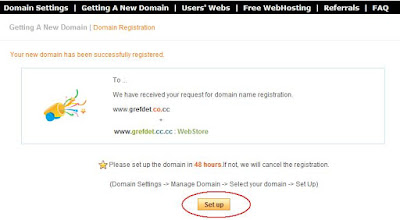
- After that you will reach to a page where it states “Your new domain has been successfully registered”.

- Click “Set up” and you will get 3 option: Name Server, Zone Record, and URL Forwarding.

- Select “Name Server” and you are given a form where you can enterr a couple of name servers. Let's take 000webhost for our tutorial (since it is also free), the 000webhost DNS server addresses are normally ns01.000webhost.com and ns02.000webhost.com (ok, if you want to convince yourself that we will not entering the wrong name server, lets skip this and move on to the next step).
- Open a new tab and go to your 000webhost account (i assume that you’ve already got your free 000webhost account). From the main page, click “Create New” at the top and fill in your new CO.CC domain and your password in the box provided. After you’re done then click “Setup New Account”
 On the new page click "Back to Account List".
- After that on the Account List page, you will see the nameservers on top. Those nameservers are the one you have to enter into the Manage DNS box column in the previous step which you had skip.


- Go back to the previous tab where you are on the CO.CC Manage DNS form page. Enter those nameservers and when you finish entering the nameservers, click “Set up” button and the job is done.


Important: Always backup your files after you do an update when you host your site on 000webhost as many users account are closed without any warning or notifications. I had an account in 000webhost and it has suddenly been closed "due to Inactivity" without informing me beforehand. The 000webhost affiliate program is also reported by many people as a scam, you can find this on Google.
Subscribe to:
Posts (Atom)