


 Mixx is another popular social media website among many others out there and the site helps you to submit any of your favorite or interesting content which you want to share it to other people. This social media site combines social networking and bookmarking. Mixx was launched in September 2007 and has a format similar to Propeller (Netscape) and Digg where you vote stories up or down. The difference is that once you submit stories to Mixx, you can’t delete it or change its title or description while you might be able to do this in other social media site. All of the content is user-generated, there are no editor who decides what you should find interesting, so you can submit stories, videos, photos —whatever you find informative, interesting, fun or different.
Showing posts with label Browser and Browsing Tips. Show all posts
Showing posts with label Browser and Browsing Tips. Show all posts
Thursday, April 8, 2010
Mixx Social Media bookmarking website
Mixx is another popular social media website among many others out there and the site helps you to submit any of your favorite or interesting content which you want to share it to other people. This social media site combines social networking and bookmarking. Mixx was launched in September 2007 and has a format similar to Propeller (Netscape) and Digg where you vote stories up or down. The difference is that once you submit stories to Mixx, you can’t delete it or change its title or description while you might be able to do this in other social media site. All of the content is user-generated, there are no editor who decides what you should find interesting, so you can submit stories, videos, photos —whatever you find informative, interesting, fun or different.

Thursday, April 1, 2010
What is Digg and how to join
Digg is a social news site for people to discover and share content anywhere on the internet. If you find a page which you want to share, you can “digg” it byy submitting the URL and a brief descripption of the page through the Digg website. There is no editors at Digg. Digg users will see your submission and they have options to “digg” it (help promote) or “bury” it (help remove spam). They even can Digg and bury comments they like or dislike. Digg surfaces the best content as voted on by the users, and if your content appear on the Digg’s home page, it will be seen to millions of visitors and therefore, you can expect a huge bump in traffic and receive lots of backlinks (which is good for your SEO). However, it is difficult and only a small number of posts will ever make the Digg front page.
 All of the Digg’s website content (from news to videos to images) comes from the site’s visitors (that would be you and other Digg account holders) and it is submitted on a voluntary basis. Among all of the social bookmarking websites, Digg is one of the most popular one, and according to Alexa.com Digg is in the top 250 most visited websites on the entire web. It is reported that Digg has approximately 33 million visitors each month and has 24 million account holders and 5 million of them are active on the site everyday.
Everytime you submit an article, video or image, it will automatically appear in “Upcoming Stories” and it will be seen by other members, if they like it, they ‘digg it’. If your submission does not receive enough Diggs within a certain time period, it will eventually falls out of the “Upcoming” section.
 All of the Digg’s website content (from news to videos to images) comes from the site’s visitors (that would be you and other Digg account holders) and it is submitted on a voluntary basis. Among all of the social bookmarking websites, Digg is one of the most popular one, and according to Alexa.com Digg is in the top 250 most visited websites on the entire web. It is reported that Digg has approximately 33 million visitors each month and has 24 million account holders and 5 million of them are active on the site everyday.
Everytime you submit an article, video or image, it will automatically appear in “Upcoming Stories” and it will be seen by other members, if they like it, they ‘digg it’. If your submission does not receive enough Diggs within a certain time period, it will eventually falls out of the “Upcoming” section.
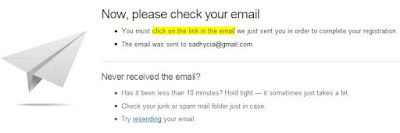
- Before you begin you need to register first with Digg, enter your info or data needed, after that you will receive an email after you complete the registration process. Click the link given in the email to be a new Digg Registered User.

- After your account is verified, you can add optional information to your profile (you can always change your profile data in Profile tab) or skip the step and start Digging.
Propeller and Reddit Social News Sites
If you want to find more social news sites to increase your website traffic further, you can try Propeller and Reddit.
 Propeller (formerly known as Netscape) and Reddit, both are famous social news websites, meaning that they are programmed by its members — the audience, includes you. You can find plenty topics from technology, gadget to humor to politics and to many more. Once you become their member (it is free to become one), it allows you to submit and vote on any stories, share it with friends and maintain a list of your favorite articles and upcoming articles. You also can submit pages from your own website or blogs that you feel are worth telling others about and at the same time inviting more traffic to your spot on the web. An excellent reward for well written or informative content.
 Propeller (formerly known as Netscape) and Reddit, both are famous social news websites, meaning that they are programmed by its members — the audience, includes you. You can find plenty topics from technology, gadget to humor to politics and to many more. Once you become their member (it is free to become one), it allows you to submit and vote on any stories, share it with friends and maintain a list of your favorite articles and upcoming articles. You also can submit pages from your own website or blogs that you feel are worth telling others about and at the same time inviting more traffic to your spot on the web. An excellent reward for well written or informative content.
What is Diigo and how to use Diigo
 Diigo is a social bookmarking service. Maybe many of you already know how to favorite a web page using Internet Explorer or bookmark using Firefox browser. In Diigo, the service is more or less the same but instead of saving the URL in your browser, you save it on the internet. The advantages of using Diigo to your everyday blogging or web surfing:
Tuesday, November 17, 2009
How to change language in Firefox
To change your Firefox language to English (or any other language) you can simply download and reinstall Firefox with your preference language version from this link http://www.mozilla.com/en-US/firefox/all.html after that choose which language you prefer and start downloading. For English language you can use this link http://www.mozilla.com/en-US/products/download.html?product=firefox-3.6&os=win&lang=en-US
How to backup bookmarks in Firefox
There is always a chance that Firefox browser may crash due to various reasons such as new theme installation, add-on installation or any other reason. To have a backup data for bookmark in Firefox is always a good idea as you may never know you will need it someday. It only takes seconds to backup your bookmark, and you can choose two methods to do it (to do bookmarks backup for Internet Explorer browser you can click here):
Browser and Browsing Tips and Tricks
Have you seen a browser who surfs in the internet with remarkable speed. Do you know that there's so many interesting ways to make your browsing much faster and easier. Here i discovered some of many cool tips and tricks that might amaze you. Once you memorized and master all of these tricks you would be able to browse like pro:
Note: Some of these shortcuts may only work for Firefox.
Note: Some of these shortcuts may only work for Firefox.
Firefox Tricks and Tips
Quick search. If you discover a word or phrase during your reading on a website and you want to put it into a search engine? Most probably all of you might open in a new tab, go to Google or any other search engine provider and type the words or phrase in there.
Firefox Tips and Tricks
Address bar. Delete items from address bar history. Your browser has the ability to show previous visited URLs automatically. When you type the name of a website in location bar (address bar), the list of visited URLs will appear. If you do not want it to
How to backup Favorites in Internet Explorer
Follow these simple and easy steps to backup your Favorites in Internet Explorer:
Saturday, November 7, 2009
How to redirect using meta refresh tag
Meta refresh redirect is a way to redirect pages, it sends your visitors from a page to another page using a meta http-equiv tag that you inserted into the header of an html document.
Here’s how to use it:
www.yourdomainname.com/nameofyourfolder and it will automatically redirect the page.
The main disadvantage of this method is that you need a separate file for every redirect.
Note that this method will not cloak your affiliate url in the address box. This basically just do a simple redirection.
By using meta refresh method to redirect, the tag is actually telling the browser to automatically request another page of a site after a certain number of seconds. The content=”” command tells your browser how many second to wait before executing the refresh and the redirection. Becareful of using this method because many SEO experts said that search engines may not like this and they may lower your page rank or even ban you because you are sending visitors to a page other than the one they requested.
Here’s how to use it:
- First, create a folder and name it whatever you like. The name of the folder will be used as part of the url link that you are going to use to redirect. So if your folder’s name is “mysite” then the redirect link will be “www.yoururl.com/mysite”
- Create an html file (you can use a notepad), and place the following script and save it as index.html. Replace “your URL” with the URL which you want to redirect and store the file in the folder which you just created.


- Upload the folder to your hosting account and you are done.
www.yourdomainname.com/nameofyourfolder and it will automatically redirect the page.
The main disadvantage of this method is that you need a separate file for every redirect.
Note that this method will not cloak your affiliate url in the address box. This basically just do a simple redirection.
By using meta refresh method to redirect, the tag is actually telling the browser to automatically request another page of a site after a certain number of seconds. The content=”” command tells your browser how many second to wait before executing the refresh and the redirection. Becareful of using this method because many SEO experts said that search engines may not like this and they may lower your page rank or even ban you because you are sending visitors to a page other than the one they requested.
How to do a PHP redirect
PHP redirect is a way to redirect pages, it sends your visitors from a page to another page using a PHP script. This kind of redirect is said to be more search engine friendly than using Meta Refresh redirect. There’s several reason webmasters need to redirect pages includes making their long url shorter or because the changes they made to their site’s directories. You can easily redirect your readers to a different page using a small snippet of PHP code (or also known as php redirect). Using this method, your visitors can be transfered to the new page witthout having to click a link to continue. Fortunately redirecting pages using PHP is an easy task.
Here’s how to do it:

Here’s how to do it:
- Create and name your new folder. Your folder’s name will be used as part of the url link which you are going to use for redirecting. Let’s say the name of your folder is “mypage” then the redirect link will be www.yoururl.com/mypage
- Create a php file (you can use a notepad), copy paste the following php code below into the notepad and remember to save it as index.php. Replace “your URL” with the URL where you want the redirection to take place and store the file in the folder that you just created.

- Upload the folder to your hosting account and it’s done. Test the new file in all major browsers, like this: www.domainname.com/nameofyourfolder. The redirect should be instantaneous.
Sunday, November 1, 2009
Difference between HTML and XHTML
XHTML stands for Extensible HyperText Markup Language. It is a cleaner and stricter version of HTML, also more stable, sharpened and sophisticated version. XHTML, is a combination of XML (Extensible Markup Language) and HTML. XML is designed to describe data, while HTML is designed to display data.
HTML (the original language of World Wide Web) is rapidly being replaced by XHTML. XHTML is similar in most features to HTML due to the fact that XHTML was derived from HTML just to conform with XML standards. There are only a few minor differences between these two markup language, its only that XHTML is designed for being a HTML successor or some call it a better HTML.
HTML (the original language of World Wide Web) is rapidly being replaced by XHTML. XHTML is similar in most features to HTML due to the fact that XHTML was derived from HTML just to conform with XML standards. There are only a few minor differences between these two markup language, its only that XHTML is designed for being a HTML successor or some call it a better HTML.
- One of the XHTML benefit is that it is more accepted in non “computer” devices such as cell phones, palm devices and other scaled down browsers.
- All elements and attributes in XHTML documents have to be written in lower case (while it is not necessarily in HTML).
- All opening tags must be closed with closing tags, in HTML many of these tags were left open and you still can view them in a browser without errors. Items like line breaks or images which are without HTML closing tags should have XHTML self-closing.
- In XHTML, all the tags also have to be properly nested, it means that if you start tag “a” and open another tag within tag “a”, you have to close the latest tag first and then close tag “a” at the last. Although nesting is also followed in HTML but it is not as strict as in XHTML.
- All values for attributes must be encased in double or single quotes and the attributes themselves should not be abbreviated.
- The image tags should be provided with alt attributes which contain the image description in order to allow them have some requirements for accessibility along with different web standard.
- Another XHTML only requirement is the declaration of the DOCTYPE which determines what rules your document will follow, which it inherited from XML. The first line you will see when you switch your XHTML page to the source code is a document type declaration (also called DTD or DOCTYPE) at the top of your XHTML documents. Most web pages being created today will include a doctype declaration. There are 3 DTDs for XHTML: Strict (only will validate if it is without deprecated tags), Transitional (will still validate with deprecated tags), and Frameset (for a page that “sets” up “frames”). All XHTML documents have to conform to the XML syntax rules.
Part 1: HTML Part 2: HTML Attributes Part 3: HTML Table Part 4: Colspan and Rowspan
Learn CSS basic codes
CSS stands for Cascading Style Sheets, is a tool to add layout to your websites. It controls the presentation of web pages. CSS provides information to the browser about how the content on the page should be displayed. CSS covers fonts, lines, margins, width, height, advanced positions and background images. It controls layout of many documents from a single style sheet, apply different layout to different media-types (print, screen, etc) and many more. Compared to HTML, CSS offers more options and is supported by all browsers today.
To structure content html is used, but to format structured content, CSS is used. CSS command consists of three parts: selector – property – value.
Selector comes first, followed by property and then value. Each property and its value is separated by a colon and ended with a semi-colon. They are also have to be surrounded by curly brackets. Example:
Selector: what html element applied in this area
Property: what will be changed to the selector.
Value: the value of what you are going to change.
Note: Don't leave spaces between property value and the units. It only works in IE but not in Opera or Firefox.
CSS can be applied in 3 ways to an html document:
Open the .htm file by double-click it and you will see that the css file will effect the other file in terms of layout or design. You can change the CSS file to update the style of all HTML documents that linking to it.
Some other common CSS coding:
Properties and Values:
Colors and background
color:green; - (choose the color)
background-color:#ff0000; - (choose background color)
background-image:url("mypic.gif"); - (background image)
background-repeat:no-repeat;/repeat;/repeat-x;/repeat-y; - (image background pattern)
Background-attachment:scroll/ fixed - (whether still image or movable)
background-position:2cm 2cm/ 50% 25%/ top right - (image background position)
Font
font-family:"Times New Roman", serif; - (what types of font will be used, a comma appears between alternate values, it means if the browser can’t find Times New Roman, it loads Serif). A comma can also separate multiple selectors.
font-style:italic;/ oblique; - (font style)
font-variant:small-caps;/ normal; - (font variant)
font-weight:bold;/ normal; - (font weight)
font-size:30px;/ 12pt;/ 120%;/1em; - (font size)
Text
text-indent:30px; - (text indent)
text-align:right;/ center;/ justify; - (text align)
text-decoration:underline;/ overline;/ line-through; - (add a line in the text)
letter-spacing:6px; - (space between letters)
text-transform:uppercase;/ lowercase;/ none;
list-style-type:circle;/ square;/ upper-roman; - (list item markers)
p:first-letter{color:#ff0000;font-size:xx-large;} – (to change the first letter of a paragraph)
p:first-line {color:#0000ff;font-variant:small-caps;} –(to change the first line of a paragraph).
Margin, Padding, Border
margin-top/ right/ bottom/ left: 100px; - (position of the margin)
or margin:100px 40px 10px 70px; - (clock-wise= top, right, bottom, left)
padding:20px 20px 20px 80px; - (padding= space between the border and content)
border-width:thick;/ thin;/medium;
border-style:dotted;/ dashed;/ solid;/ double;/ groove;/ ridge;/ inset;/ outset;
border-style:dotted solid double dashed; - (adding different border style from top-right-bottom-left/ clock-wise direction)
border-top/ left/ bottom-color:red; -(apply a color to only one side of a border)
border-bottom/ top/ right-style:solid; -(add style to only one side of a border)
border-top/ left/ bottom-width:thick; -(set the size of a border)
outline:green dotted thick; - (a line drawn around elements (outside the borders).
outline-color:#00ff00;/ style:dotted;/ width:5px;
position:absolute;/ relative; top:150px; left:500px; - (locating an element whether in absolute or relative position)
z-index:1;/2;/3; etc. - (To make an element become layers and the value of its property can be used as an order of which elements overlap one another)
visibility:hidden – (to hide an element, but it still take up the same space as before)
display:none – (to hide an element and it will not take up any space)
max-height:/min-height:/max-width:/min-width:100px; - (set the maximum/ minimum height and width of an element)
display:inline – (to change block element become inline)
display:block – (to change an inline element to a block element)
Selectors:
Link
a:visited - (a visited link)
a:active - (a link the moment it is clicked.)
a:hover - (when you place a cursor over a link)
Class, Id and Div
class="....." - (to specify a style to a particular element or group of elements)
id="....." - (to specify a style for a single, unique element)
span class="....." - (for adding visual features to selected parts of text)
div id="....." - (to group one or more block-level elements)
Comment
/*put your comment here*/ - (you can add comment on top of css coding to explain your code, comments are ignored by browsers)
To structure content html is used, but to format structured content, CSS is used. CSS command consists of three parts: selector – property – value.
Selector {property: value; }
Selector comes first, followed by property and then value. Each property and its value is separated by a colon and ended with a semi-colon. They are also have to be surrounded by curly brackets. Example:
body {background-color: red;}
Selector: what html element applied in this area
Property: what will be changed to the selector.
Value: the value of what you are going to change.
Note: Don't leave spaces between property value and the units. It only works in IE but not in Opera or Firefox.
CSS can be applied in 3 ways to an html document:
- by using the html attribute style (inline) – example:
<body style="background-color: yellow;">
- By inserting the CSS codes between style tag (<style>) – example:
<html>
<head>
<title>Example</title>
<style type="text/css">
body {background-color: yellow;}
</style>
</head>
- By inserting the CSS codes in an external style sheet (a text file with the extension “.css”) and linked to the html document. The link can be created with a line of html code that is inserted in the header section of your html file (between <head> and </head> tag):
<link rel="stylesheet" type="text/css" href="name-of-the-folder/name-of-the-file.css" />
| Save this to "mypage.htm": | Save this to "style.css": |
| <html> <head> <title>My Page</title> <link rel="stylesheet" type="text/css" href="style.css" /> </head> <body> <h1>Hello, I’m Edy Bright</h1> </body> </html> | body {
background-color: red; } |
Open the .htm file by double-click it and you will see that the css file will effect the other file in terms of layout or design. You can change the CSS file to update the style of all HTML documents that linking to it.
Some other common CSS coding:
Properties and Values:
Colors and background
color:green; - (choose the color)
background-color:#ff0000; - (choose background color)
background-image:url("mypic.gif"); - (background image)
background-repeat:no-repeat;/repeat;/repeat-x;/repeat-y; - (image background pattern)
Background-attachment:scroll/ fixed - (whether still image or movable)
background-position:2cm 2cm/ 50% 25%/ top right - (image background position)
Font
font-family:"Times New Roman", serif; - (what types of font will be used, a comma appears between alternate values, it means if the browser can’t find Times New Roman, it loads Serif). A comma can also separate multiple selectors.
font-style:italic;/ oblique; - (font style)
font-variant:small-caps;/ normal; - (font variant)
font-weight:bold;/ normal; - (font weight)
font-size:30px;/ 12pt;/ 120%;/1em; - (font size)
Text
text-indent:30px; - (text indent)
text-align:right;/ center;/ justify; - (text align)
text-decoration:underline;/ overline;/ line-through; - (add a line in the text)
letter-spacing:6px; - (space between letters)
text-transform:uppercase;/ lowercase;/ none;
list-style-type:circle;/ square;/ upper-roman; - (list item markers)
p:first-letter{color:#ff0000;font-size:xx-large;} – (to change the first letter of a paragraph)
p:first-line {color:#0000ff;font-variant:small-caps;} –(to change the first line of a paragraph).
Margin, Padding, Border
margin-top/ right/ bottom/ left: 100px; - (position of the margin)
or margin:100px 40px 10px 70px; - (clock-wise= top, right, bottom, left)
padding:20px 20px 20px 80px; - (padding= space between the border and content)
border-width:thick;/ thin;/medium;
border-style:dotted;/ dashed;/ solid;/ double;/ groove;/ ridge;/ inset;/ outset;
border-style:dotted solid double dashed; - (adding different border style from top-right-bottom-left/ clock-wise direction)
border-top/ left/ bottom-color:red; -(apply a color to only one side of a border)
border-bottom/ top/ right-style:solid; -(add style to only one side of a border)
border-top/ left/ bottom-width:thick; -(set the size of a border)
outline:green dotted thick; - (a line drawn around elements (outside the borders).
outline-color:#00ff00;/ style:dotted;/ width:5px;
position:absolute;/ relative; top:150px; left:500px; - (locating an element whether in absolute or relative position)
z-index:1;/2;/3; etc. - (To make an element become layers and the value of its property can be used as an order of which elements overlap one another)
visibility:hidden – (to hide an element, but it still take up the same space as before)
display:none – (to hide an element and it will not take up any space)
max-height:/min-height:/max-width:/min-width:100px; - (set the maximum/ minimum height and width of an element)
display:inline – (to change block element become inline)
display:block – (to change an inline element to a block element)
Selectors:
Link
a:visited - (a visited link)
a:active - (a link the moment it is clicked.)
a:hover - (when you place a cursor over a link)
Class, Id and Div
class="....." - (to specify a style to a particular element or group of elements)
id="....." - (to specify a style for a single, unique element)
span class="....." - (for adding visual features to selected parts of text)
div id="....." - (to group one or more block-level elements)
Comment
/*put your comment here*/ - (you can add comment on top of css coding to explain your code, comments are ignored by browsers)
Part 1: HTML Part 2: HTML Attributes Part 3: HTML Table Part 4: Colspan and Rowspan
What's the difference between HTML and XHTML What is CSS?
What's the difference between HTML and XHTML What is CSS?
Colspan and Rowspan in HTML Table
Part 1: HTML
Part 2: HTML Attributes
Part 3: HTML Table
Part 4: Colspan and Rowspan
Colspan and rowspan are html attributes used to span table cells across more than a column or row. Colspan is short for “column span” or indicates “how many across” while a rowspan indicates “how many down”.
Colspan is used within a <td> tag to specify how many columns it should span.
Here, i give you the example:
<table border="1">
<tr>
<td colspan="5">Cell 1-5 combined</td>
</tr>
<tr>
<td>Cell 1</td>
<td>Cell 2</td>
<td>Cell 3</td>
<td>Cell 4</td>
<td>Cell 5</td>
</tr>
</table>
and here is the outcome:
By setting colspan to "5", the cell in the first row spans five columns. Here below is another example for better understanding:
<table border="1">
<tr>
<td colspan="3">Cell 1-3</td>
<td>Cell A</td>
<td>Cell B</td>
</tr>
<tr>
<td>Cell 1</td>
<td>Cell 2</td>
<td>Cell 3</td>
<td>Cell 4</td>
<td>Cell 5</td>
</tr>
</table>
Here when you see in a browser:
Rowspan sets how many rows a cell spans.
Example:
<table border="1">
<tr>
<td rowspan="5">Cell 1-5</td>
<td>Cell 1</td>
</tr>
<tr>
<td>Cell 2</td>
</tr>
<tr>
<td>Cell 3</td>
</tr>
<tr>
<td>Cell 4</td>
</tr>
<tr>
<td>Cell 5</td>
</tr>
</table>
and here the result when you see in the browser:
Not as hard as you think right?, and with a number of practices, it should get easier and you might get used to it :)
Part 2: HTML Attributes
Part 3: HTML Table
Part 4: Colspan and Rowspan
Colspan and rowspan are html attributes used to span table cells across more than a column or row. Colspan is short for “column span” or indicates “how many across” while a rowspan indicates “how many down”.
Colspan is used within a <td> tag to specify how many columns it should span.
Here, i give you the example:
<table border="1">
<tr>
<td colspan="5">Cell 1-5 combined</td>
</tr>
<tr>
<td>Cell 1</td>
<td>Cell 2</td>
<td>Cell 3</td>
<td>Cell 4</td>
<td>Cell 5</td>
</tr>
</table>
and here is the outcome:
Cell 1-5 combined
| ||||
| Cell 1 | Cell 2 | Cell 3 | Cell 4 | Cell 5 |
By setting colspan to "5", the cell in the first row spans five columns. Here below is another example for better understanding:
<table border="1">
<tr>
<td colspan="3">Cell 1-3</td>
<td>Cell A</td>
<td>Cell B</td>
</tr>
<tr>
<td>Cell 1</td>
<td>Cell 2</td>
<td>Cell 3</td>
<td>Cell 4</td>
<td>Cell 5</td>
</tr>
</table>
Here when you see in a browser:
Cell 1-3
| Cell A | Cell B | ||
| Cell 1 | Cell 2 | Cell 3 | Cell 4 | Cell 5 |
Rowspan sets how many rows a cell spans.
Example:
<table border="1">
<tr>
<td rowspan="5">Cell 1-5</td>
<td>Cell 1</td>
</tr>
<tr>
<td>Cell 2</td>
</tr>
<tr>
<td>Cell 3</td>
</tr>
<tr>
<td>Cell 4</td>
</tr>
<tr>
<td>Cell 5</td>
</tr>
</table>
and here the result when you see in the browser:
| Cell 1-5 | Cell 1 |
| Cell 2 | |
| Cell 3 | |
| Cell 4 | |
| Cell 5 |
Not as hard as you think right?, and with a number of practices, it should get easier and you might get used to it :)
Using HTML codes to create Tables
Part 1: HTML
Part 2: HTML Attributes
Part 3: HTML Table
Part 4: Colspan and Rowspan
Tables are defined with <table> tag and it is made of rows (<tr>) and columns (<td>). Tr means table row and td means table data.
Part 2: HTML Attributes
Part 3: HTML Table
Part 4: Colspan and Rowspan
Tables are defined with <table> tag and it is made of rows (<tr>) and columns (<td>). Tr means table row and td means table data.
- To start creating table, you need an opening table tag, which is <table> and to end it, is to use table closing tag which is </table>.
- To start creating horizontal table rows you need the opening tag <tr> and after entering number of column/s you need to end it with a closing tag </tr>.
- To start making column in the table, as usual you need the opening tag <td> and after entering all the data, close it with a closing tag which is <td>.
What is attributes in HTML
Part 1: HTML
Part 2: HTML Attributes
Part 3: HTML Table
Part 4: Colspan and Rowspan
What is an attributes in HTML?
Attribute is an additional command towards the element which are written after a start tag and come in name/value pairs like: name=”value”. The values are always enclosed in quotes.
Here are the examples of attribute:
Part 2: HTML Attributes
Part 3: HTML Table
Part 4: Colspan and Rowspan
What is an attributes in HTML?
Attribute is an additional command towards the element which are written after a start tag and come in name/value pairs like: name=”value”. The values are always enclosed in quotes.
Here are the examples of attribute:
What is HTML and how to use it
Part 1: HTML
Part 2: HTML Attributes
Part 3: HTML Table
Part 4: Colspan and Rowspan
HTML stands for Hyper Text Markup Language, it is a language (computer language) to tell your browser how a page should be displayed, which makes it possible to present information, showing pictures, graphics and etc. The language consists of codes, and there are plenty different codes for all sorts of formatting. When you view a page from a browser, what you see is the browser’s interpretation of HTML.
You can see the HTML codes of a page on the internet by simply clicking “View” and then select “Source” or if you are using Firefox browser you can press Ctrl + U on your keyboard to view the codes. For people who do not know what is or how to use the codes, HTML code can be very complicated and scary to them. The good news is that HTML is very easy to learn and understand, if you want to build your own website you need to learn what is HTML and how to use it.
The HTML codes consists of tags (markup tags or usually called as HTML tags), and the tag itself consists of keyword inside angle brackets. Most HTML tags start with an opening tag and end with a closing tag. A HTML document has 2 parts: a head (information about the page, anything you put here will not be displayed on the page) and a body (information that constitutes the page, anything you put here will be displayed on the page).
Still get confused? Well, i think it’s better if we put it into practice. Practice can explain and make you understand much better rather than just theory.
Open a Notepad, copy and paste he following HTML codes:
<html>
<head>
<title>This is my first website</title>
</head>
<body>
<p><b>This is the first sentence</b></p>
<p><i>This is the second sentence</i></p>
<p><U>This is the third sentence</u></p>
</body>
</html>
Save your notepad and name it “mypage.htm”, don’t forget to choose “All Files” otherwise you save it as a text document and not HTML document.
 The ending “.htm” means that it is an HTML document, you also can name it with the ending of “.html”, it gives the same result. After that go and open the document by double-clicking the file. See and notice what happen to each of the sentence, different tag you apply to each of the line produce different effect to the text.
Here another common basic HTML commands:
<b> means "bold"
<i> means "italics"
<em> means "emphasis"
<u> means "underline"
<h1> means "heading 1"
<br> means "break"
<p> means "paragraph"
<hr> means "horizontal"
<ul> means "unordered list"
<ol> means "ordered list"
It doesn’t matter whether you type the tags in uppercase or lowercase, it will give the same result.
In the HTML code, there is attribute. Attribute also plays one of the most important role, but what is it? Let us discuss it in the next page.
Part 2: HTML Attributes
Part 3: HTML Table
Part 4: Colspan and Rowspan
HTML stands for Hyper Text Markup Language, it is a language (computer language) to tell your browser how a page should be displayed, which makes it possible to present information, showing pictures, graphics and etc. The language consists of codes, and there are plenty different codes for all sorts of formatting. When you view a page from a browser, what you see is the browser’s interpretation of HTML.
You can see the HTML codes of a page on the internet by simply clicking “View” and then select “Source” or if you are using Firefox browser you can press Ctrl + U on your keyboard to view the codes. For people who do not know what is or how to use the codes, HTML code can be very complicated and scary to them. The good news is that HTML is very easy to learn and understand, if you want to build your own website you need to learn what is HTML and how to use it.
The HTML codes consists of tags (markup tags or usually called as HTML tags), and the tag itself consists of keyword inside angle brackets. Most HTML tags start with an opening tag and end with a closing tag. A HTML document has 2 parts: a head (information about the page, anything you put here will not be displayed on the page) and a body (information that constitutes the page, anything you put here will be displayed on the page).
Still get confused? Well, i think it’s better if we put it into practice. Practice can explain and make you understand much better rather than just theory.
Open a Notepad, copy and paste he following HTML codes:
<html>
<head>
<title>This is my first website</title>
</head>
<body>
<p><b>This is the first sentence</b></p>
<p><i>This is the second sentence</i></p>
<p><U>This is the third sentence</u></p>
</body>
</html>
Save your notepad and name it “mypage.htm”, don’t forget to choose “All Files” otherwise you save it as a text document and not HTML document.
The ending “.htm” means that it is an HTML document, you also can name it with the ending of “.html”, it gives the same result. After that go and open the document by double-clicking the file. See and notice what happen to each of the sentence, different tag you apply to each of the line produce different effect to the text.Here another common basic HTML commands:
| <HTML> </HTML> | To create a Web page. All Web pages must have this command. |
| <HEAD> </HEAD> | All the head elements are written here, anything you put inside a head tag will not be displayed on the page. Elements inside head tag include scripts, meta information, instruct the browser where to find style sheets and more. |
| <TITLE> </TITLE> | Displays the Title in the title bar area. |
| <BODY> </BODY> | Anything you put inside the body tag will be displayed on the page and will be shown in the browsers to users. |
| <B> </B> or <strong> </strong> | The text will be shown in Bold |
<I> </I> or <em> </em> | The text will be shown in Italics |
| <u> </u> | To underline a text or words. |
| <strike> </strike> | |
| <CENTER> </CENTER> | |
| <H1> </H1> | Heading 1 |
| <H2> </H2> | Heading 2 |
| <H3> </H3> | Heading 3 |
| <H4> </H4> | Heading 4 |
| <H5> </H5> | Heading 5 |
| <H6> </H6> | Heading 6 |
| <BR> | New Line. Creates single space bettween lines. |
| <P> </p> | New paragraph. Creates double space between lines, paragraphs. |
| | To add a space. |
| <HR> | Produces a horizontal rule across document. |
| <ul> <li>A list</li> <li>Another list</li> </ul> |
|
| <ol> <li>First list</li> <li>Second list</li> </ol> |
|
<b> means "bold"
<i> means "italics"
<em> means "emphasis"
<u> means "underline"
<h1> means "heading 1"
<br> means "break"
<p> means "paragraph"
<hr> means "horizontal"
<ul> means "unordered list"
<ol> means "ordered list"
It doesn’t matter whether you type the tags in uppercase or lowercase, it will give the same result.
In the HTML code, there is attribute. Attribute also plays one of the most important role, but what is it? Let us discuss it in the next page.
Wednesday, July 8, 2009
Tips & Tricks optimize StumbleUpon
In using StumbleUpon, there are rules to follow in order to get positive result and give your site a traffic boost. Here are some useful and popular tips that are used by many good Stumblers to optimize their websites:
- Set up your StumbleUpon profile is important.
- Don’t lead stumblers to main page of your website or blog.
- Create a good quality content and try to only stumble the best content of your website.
- Your content should be written in a way that cannot be digested just in one single visit.
- Don’t put so many advertising and selling products, it may looked cramped.
- Your website should have memorable branding and an easy to remember URL.
- Label and tag your submitted pages appropriately. Broad tagging helps. Find some popular and often searched keywords.
- Like Digg , Propeller, Reddit, Mixx and any related social bookmarking websites, making friends as many as you can and expanding your networking is one of the most important factor.
- Attach StumbleUpon button on your website to allow visitors stumble your web page easily.
- Stumble a page which link to you and encourage other user to do the same.
- You can buy sponsored stumbles, it means that you pay StumbleUpon for every targeted person they bring to your page. You can target according to personal interest, location, history of rating similar sites and demographics such as sex and age.
- Personalize your ‘About’ page and join the communities relating to your interests.
Basic guide how to use StumbleUpon
Different ways to stumble, follow this guide and enjoy the quick and easy way to explore StumbleUpon.
To stumble according to your one specific interest:
From the toolbar > All > select an interest.
To stumble other user’s favorites:
From their profile > click Stumble (you will stumbling to sites which are thumbed-up by that user).
To stumble within user’s tag:
From their profile > click one of their favorite tags > Stumble (you will be stumbling to sites that come within their tag).
To stumble pages only from certain website (e.g Youtube, Blogger), this is also called StumbleThru or Channel Stumbling:
From the toolbar > All > Stumble Thru.
From the website > Stumble Thru (on footer below).
Stumble pages based on keywords:
From the toolbar > search/ tag box > enter keyword > enter and Stumble.
To show the “search/ tag box”:
Go to Tools > Toolbar option > Search & Tagging tab > check the ‘Show search/ tag’ box.
To go back to basic stumbling:
Click on ‘Tools’ a drop-down menu of your toolbar > All, or
From the website > Discover tab > Stumble.
To change the type of sites you would like to visit:
Click ‘Settings’ on top right > Manage Interests > select the subjects which interest you > Save preference.
You will occasionally stumble upon a “sponsored stumble”. It means that an advertiser has paid to bring their site to you. This is indicated by a green-shirted person icon in the toolbar. You will only see sponsored web pages related to the topics you are interested in and you will not see more than one sponsored web page per fifteen stumbles.
You can also find out whether your website is already listed on StumbleUpon, to do that you can visit this link and type in your URL.
How to set up your StumbleUpon profile:
Click ‘Settings’ > Account Settings:
Fill in your name, email address, location and etc. You can choose whether or not you want to display your birthday to public.
Click ‘Settings’ > Customize Profile:
You can change your theme color, write a short description of yourself and select as many things you’d like other users to know about you.
Click ‘Setting’ > Profile Picture:
Upload your profile picture. A logo for your site or a close-up of you are perhaps the best choices.
Sharing your StumbleUpon with friends via email:
You can import your friend’s email contacts to find out which of them is already using StumbleUpon so you can add/ subscribe to them or invite your friends to join for those who haven’t.
Click the Stumblers tab > click on ‘See who you know’ > Find friends > enter your email address and password > Find friends.
Mark the checkbox next to the name of your friend/s who already use StumbleUpon to make them your StumbleUpon friendd.
Mark the checkbox next to the name of your friend/s who do not use StumbleUpon to invite them to use it.
Click Invite.
To stumble according to your one specific interest:
From the toolbar > All > select an interest.
To stumble other user’s favorites:
From their profile > click Stumble (you will stumbling to sites which are thumbed-up by that user).
To stumble within user’s tag:
From their profile > click one of their favorite tags > Stumble (you will be stumbling to sites that come within their tag).
To stumble pages only from certain website (e.g Youtube, Blogger), this is also called StumbleThru or Channel Stumbling:
From the toolbar > All > Stumble Thru.
From the website > Stumble Thru (on footer below).
Stumble pages based on keywords:
From the toolbar > search/ tag box > enter keyword > enter and Stumble.
To show the “search/ tag box”:
Go to Tools > Toolbar option > Search & Tagging tab > check the ‘Show search/ tag’ box.
To go back to basic stumbling:
Click on ‘Tools’ a drop-down menu of your toolbar > All, or
From the website > Discover tab > Stumble.
To change the type of sites you would like to visit:
Click ‘Settings’ on top right > Manage Interests > select the subjects which interest you > Save preference.
You will occasionally stumble upon a “sponsored stumble”. It means that an advertiser has paid to bring their site to you. This is indicated by a green-shirted person icon in the toolbar. You will only see sponsored web pages related to the topics you are interested in and you will not see more than one sponsored web page per fifteen stumbles.
You can also find out whether your website is already listed on StumbleUpon, to do that you can visit this link and type in your URL.
How to set up your StumbleUpon profile:
Click ‘Settings’ > Account Settings:
Fill in your name, email address, location and etc. You can choose whether or not you want to display your birthday to public.
Click ‘Settings’ > Customize Profile:
You can change your theme color, write a short description of yourself and select as many things you’d like other users to know about you.
Click ‘Setting’ > Profile Picture:
Upload your profile picture. A logo for your site or a close-up of you are perhaps the best choices.
Sharing your StumbleUpon with friends via email:
You can import your friend’s email contacts to find out which of them is already using StumbleUpon so you can add/ subscribe to them or invite your friends to join for those who haven’t.
Click the Stumblers tab > click on ‘See who you know’ > Find friends > enter your email address and password > Find friends.
Mark the checkbox next to the name of your friend/s who already use StumbleUpon to make them your StumbleUpon friendd.
Mark the checkbox next to the name of your friend/s who do not use StumbleUpon to invite them to use it.
Click Invite.
Subscribe to:
Comments (Atom)